

Badges
In the admin: Dashboard, then any app. See the Settings reference.
A badge is the small pill on the corner of an app tile. It carries context without adding a widget.
Each kind is turned on per app, in that app’s edit form under Badge.
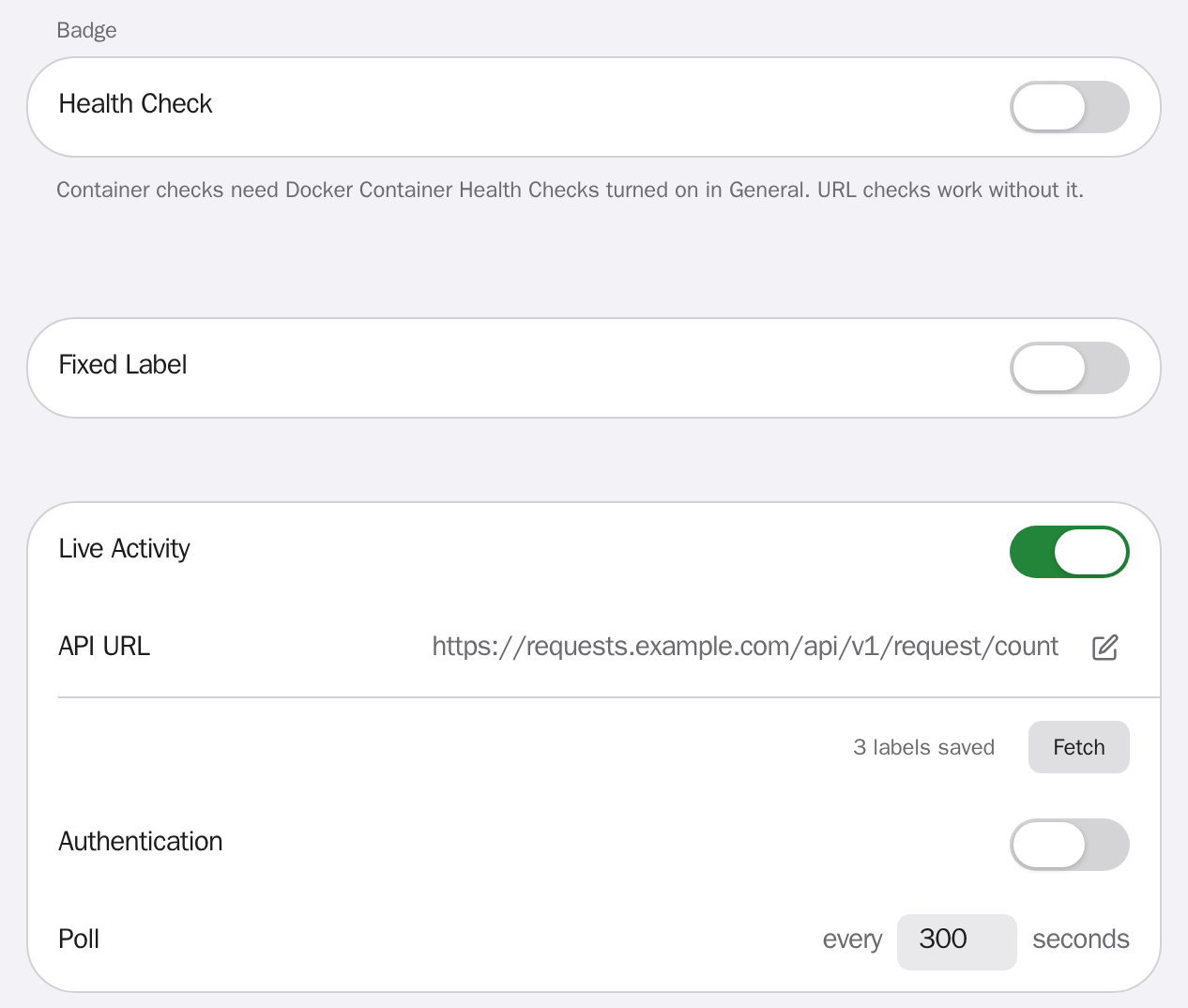
Health check
Section titled “Health check”Reports whether a service is up.
| Type | What it reads |
|---|---|
| Container | The container’s state from the Docker daemon. |
| Ping | The HTTP status from a URL you give it. |
Healthy shows green. A problem shows ! and hovering gives the reason: container not found, container not running, daemon reported it unhealthy, ping failed, or ping returned an error status.
Container checks need Docker Container Health Checks turned on in General, plus socket access. See Advanced configuration. Ping checks need neither.
Turn on Hide Healthy Badge in General to show a badge only when something is wrong.
Fixed label
Section titled “Fixed label”Text you type once, capped at 10 characters. Pick a colour from the swatches or give a hex value.
Live activity
Section titled “Live activity”Numbers read from a service’s own API.
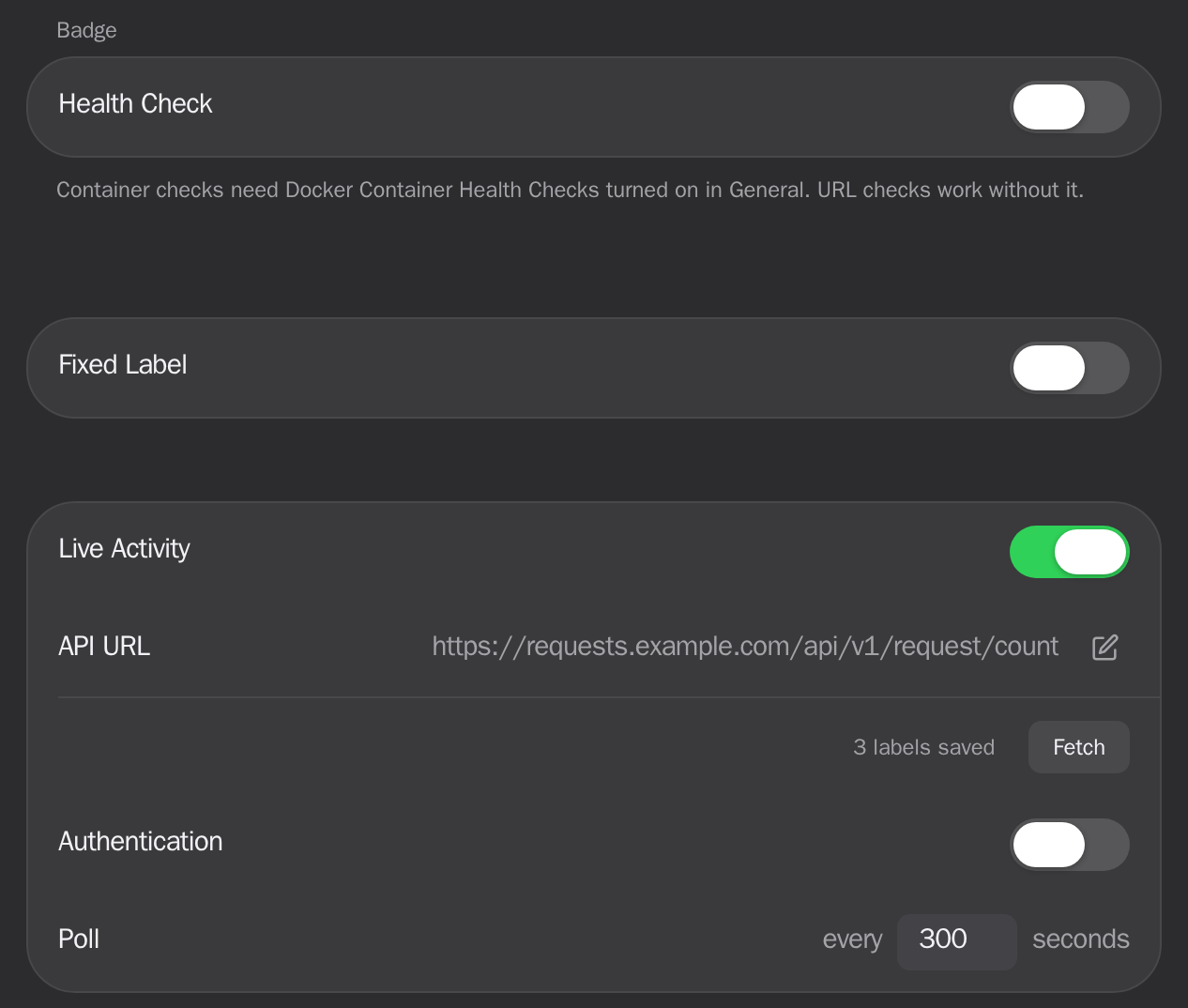
Enter the API URL and press Fetch. Stackyard reads the response and lists every number it found, including array lengths and counts of matching items, so you pick from a menu rather than writing a path. No custom widget, no code.
| Field | What it does | Example |
|---|---|---|
| API URL | The endpoint to poll. | https://requests.example.com/api/v1/request/count |
| Authentication | A header or parameter to send. Tick Secret to keep the value out of the browser. | Header X-Api-Key, Secret ticked |
| Poll | How often to re-read the endpoint. | 300 seconds |
Labels
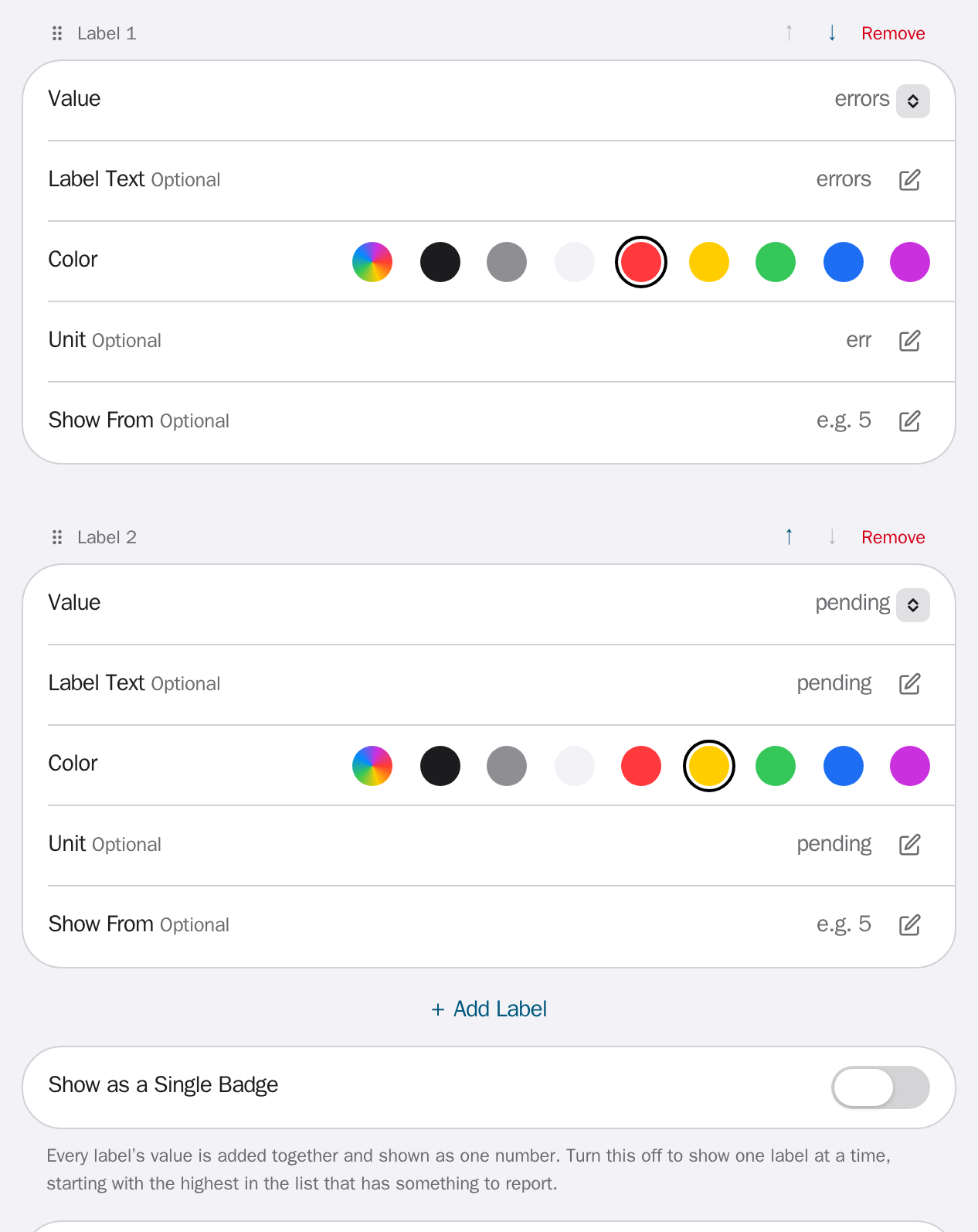
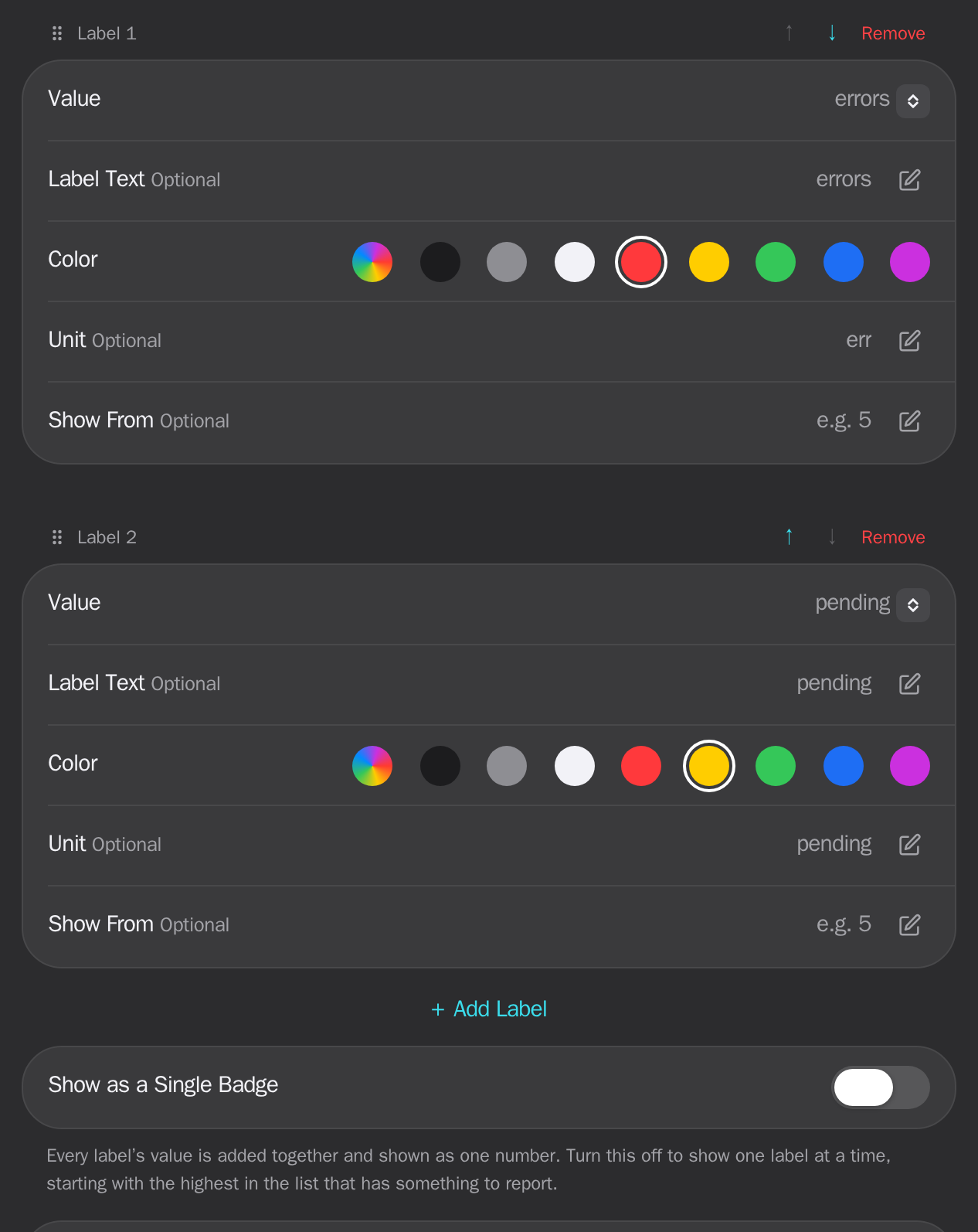
Section titled “Labels”One poll can feed several labels. Each names one number from the response and carries its own text, colour, unit and threshold.
| Field | What it does | Example |
|---|---|---|
| Value | Which number from the response this label reads. | pending |
| Label Text | The name shown in the list. Optional. | pending |
| Color | The badge fill. Optional. | #ffcc00 |
| Unit | A short suffix for the number, shown in the list and read out by a screen reader. Optional. | pending |
| Show From | The count below which this label stays quiet. Optional. | 5 |
A label is quiet until its number reaches Show From. Leave Show From blank to report any count above zero. A count above 99 shows as 99+, with the full number in the list.
The pill carries the number alone, so a unit can never make it wider than the icon it marks. The unit appears in the list beside the number.
An app can have five labels. Only the first one that has something to report is drawn on the tile, so a queue that is never quite empty stays out of the way until it matters.
Reading more than one
Section titled “Reading more than one”When a second badge is reporting, a matching pill appears behind the first in that badge’s colour. It means there is more to see.
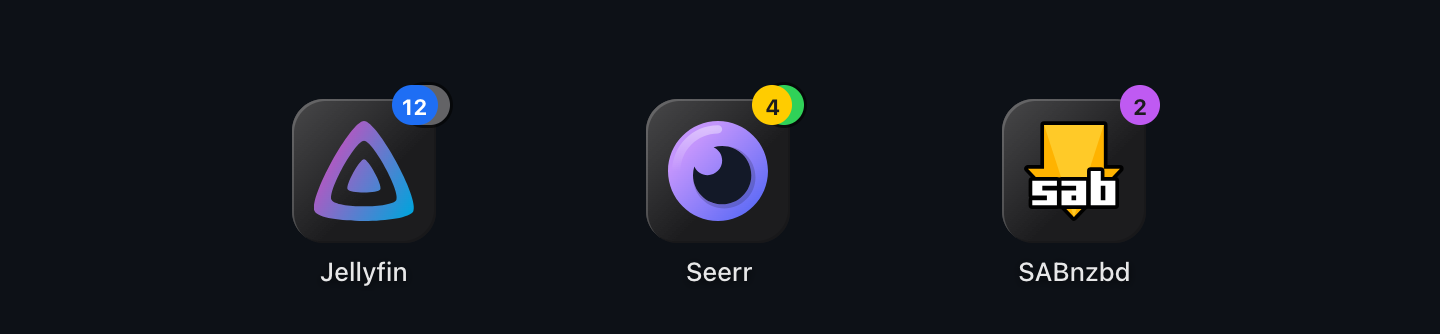
Hover the badge, tap it on a phone, or move focus to the tile with a keyboard. Everything the tile is reporting opens in a list, with the full numbers and no truncation. Press Escape or tap elsewhere to close it. Tapping the badge opens the list without following the link.
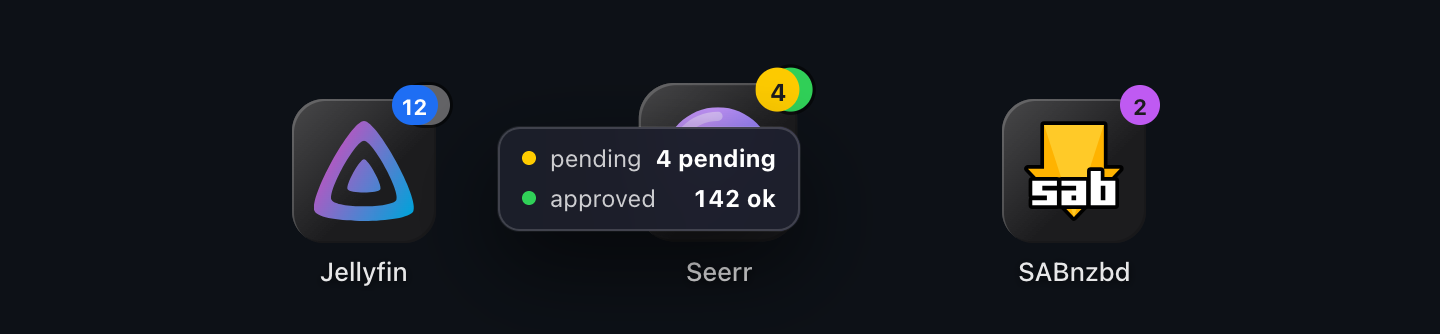
The list only appears when there is a second badge. One badge is already fully shown on the tile.
One total instead
Section titled “One total instead”Turn on Show as a Single Badge to add every label’s value together and show the sum as one number, in the first label’s colour. This is how Live Activity behaved before labels, and dashboards that used it keep it.
Folders
Section titled “Folders”A folder shows the badge of the app inside it that is reporting, rather than a total. Opening its list names each row by the app it came from.
Which badge wins
Section titled “Which badge wins”An app can have several configured. The first of these that applies is the one drawn.
Whatever is not drawn is still reachable: two or more badges on one tile open the list described above.
Stale values
Section titled “Stale values”If a poll fails, the last known badge stays on the tile and is marked stale. A failed poll is never read as zero.
Accessibility
Section titled “Accessibility”Every badge carries a text description for screen readers, so meaning is never carried by colour alone, and so does the list behind it. Badge text is white wherever white is readable against the fill, and dark only where white would fail the contrast requirement.
The list opens on keyboard focus as well as on hover and tap, and label order can be changed with the arrow buttons as well as by dragging.